Design sources
Start with the file you can edit. The company signature introduces OpenBoa. A food emoji identifies a project, a face identifies an agent, an icon names an action, and a chart answers a question.
General emoji
Find a face, gesture, animal, place, activity, object, symbol or flag in the shared palette. The collection includes 3,831 sequences, each with an editable drawing and a transparent chat export.


Brand applications
Introduce the company on a cover with the full signature and a single thought. In this 16:9 example, the wordmark stays outlined and the headline stays editable in Rethink Sans.
Editable task list and recovery specimen · Product component catalog
Project emoji
First family study
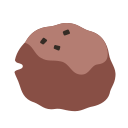
A food emoji identifies a project in a list, message or release note. Each drawing has one feature you can name from memory. A peeled lid identifies yogurt. One long score identifies sourdough. Three flecks of cracked pepper finish the round meatball.

Bottom center
SVG · 128 px PNG

Upper left shoulder
SVG · 128 px PNG


Left flank
SVG · 128 px PNG

The large proofs compare contours. The small exports show the notched artwork at 16, 24 and 32 px. At 16 px the food silhouette carries recognition. Each notch cuts all the way through the artwork. Both paper and ink show through it.
Build another member
Choose a food with a distinctive outline. Draw one identifying detail in a few flat shapes on a 64-unit canvas. Pick named values from the shared palette. Place one shallow notch on a calm stretch of the outer contour. Compare the silhouette beside the other foods at message size.
Use :yogurt:, :sourdough: or :meatball: as the suggested custom emoji name. When the adjacent text already names the project, the image can be decorative. When the image stands alone, give it the project name as its accessible label.
Action icons
Working set
Four glyphs use a 24-unit grid, a two-unit stroke and round ends. Each names one familiar action. Give an icon-only control an accessible action name. A glyph beside the same visible label can be decorative.


Review these at 16 and 24 px in the control that will use them. The hit area belongs to that control. Control sizes
Agent shapes
Selected silhouette study
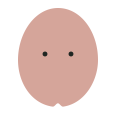
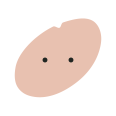
Kai’s top notch pinches to a fine point. Sol’s bottom notch is wider and shallower. Those two gestures give the family its character. Keep the eyes small and give each outline only the notch positions that suit it.


Fifteen silhouettes
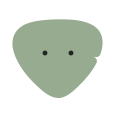
Each SVG opens on its selected pose. Its named paths contain every fitted notch for that shape. The inventory also includes the smooth base curves, eye anchors, default fill tokens and permitted positions.
 Kai
 Sol
 Wide oval
 Low dome
 Round triangle
 Tall capsule
 Round diamond
 Wide base
 Wide crown
 Tilted oval
 Drop
 Round star
 Bean
 Round pentagon
 Round heart
Silhouette inventory and base curves
The 45 fitted shape-and-position pairs would yield 1,035 candidates with 23 distinguishable fills per pair. The original sage, coral and blue-gray anchors share the product palette. Count identities as usable after comparison at roster size on both surfaces.
Motion
Eye movement study
When a task starts, Kai glances toward the work. Both eyes move together. The outline holds still. Compare the same face in a detail view and a roster.
Kai is ready.
The 160 ms transition is a study value. With reduced motion enabled the eyes stay at rest. The state remains available as text in both modes. Motion values and eye anchors
Data visualization
How many notch positions fit each silhouette?
A bar compares a count from a common zero. These three examples come from the selected shape inventory. The blue has one job here. It identifies the same measure on every row.

View the values
| Silhouette | Count |
|---|---|
| Kai | 4 |
| Sol | 3 |
| Round star | 2 |
- Compare quantities
- Use bars for comparable counts or amounts. Name the unit, start at zero and label the values directly.
- Follow a trend
- Use a line for a measured value over time. Label the time interval and unit. Leave a gap where an observation is missing.
- Read a sequence
- Use a timeline for ordered events such as a request, a decision and its result. Pair each event with its time and state in words.